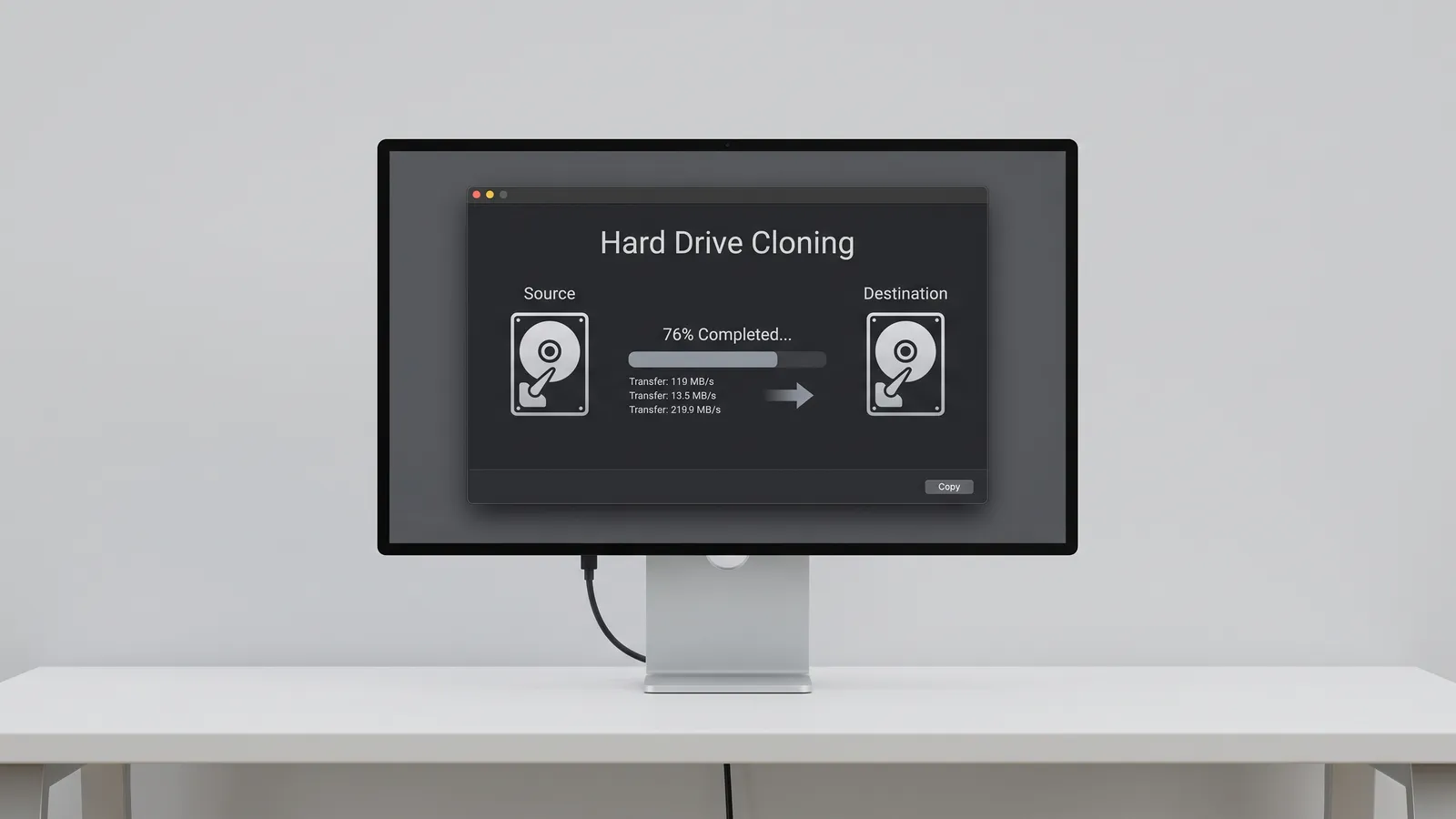
What Hard Drive Cloning Actually Does
Cloning copies the entire contents of one drive onto another: Windows itself, every installed program, your files, browser profiles, saved passwords, printer settings, and even the hidden boot and recovery partitions. When the job is done, the new drive goes in and the computer starts up looking exactly the way you left it, just faster. That is why cloning is the most common way to upgrade a laptop from an old mechanical hard drive to an SSD without losing a single setting.
A proper clone is more than dragging folders onto a new disk. Copying files by hand does not move installed programs or the boot structure, so Windows will not start from a drive filled that way. Cloning software works at the partition level, rebuilds the boot records on the destination drive, and resizes partitions so a larger or smaller SSD uses its space correctly.
What a Clean Windows Reinstall Gets You
A clean reinstall wipes the slate. Windows is installed fresh on the new drive with current drivers, and nothing from the old system comes along: no leftover programs, no years of temporary files, no startup clutter, and no malware hiding in the background. For a computer that was already slow, unstable, or showing errors before the upgrade, a fresh install of Windows is often what really brings it back to life.
The tradeoff is time on your end. Every program has to be installed again, accounts need to be signed back in, and your documents, photos, and other personal files have to be backed up first and restored afterward. Some software, like accounting suites or design tools, also needs its license key or a deactivation from the old install, so it is worth gathering those details before the drive is wiped.
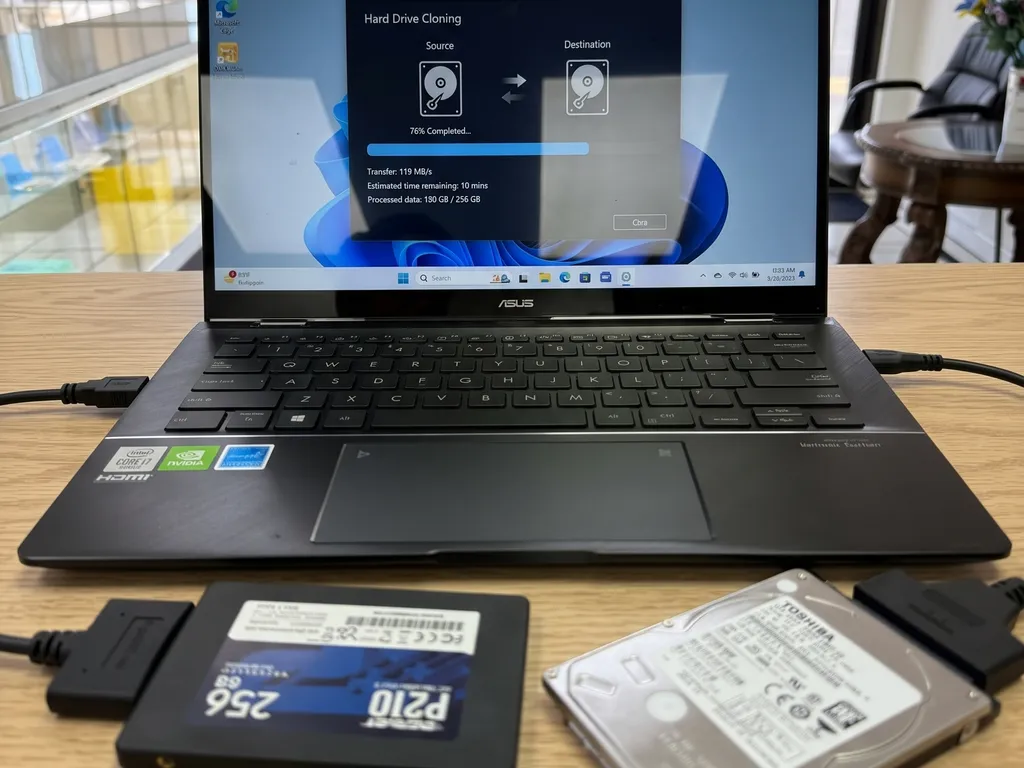
Cloning vs Reinstalling Windows: Side by Side
| Aspect | Hard drive cloning | Clean Windows reinstall |
|---|---|---|
| Programs and settings | Kept exactly as they were | Installed again |
| Personal files | Copied automatically | Backed up and restored |
| Old errors and malware | Copied too | Left behind |
| Setup time for you | Minimal | Several hours |
| Best for | Healthy, well set up PCs | Slow or unstable PCs |
Clone or Reinstall: Which One Should You Choose?
Choose cloning if
- The computer runs fine and the only complaint is slowness from an old hard drive.
- You have many programs, custom settings, or work tools that would take hours to set up again.
- You need the computer back exactly the same, like a small business laptop in Miami-Dade running invoicing or point of sale software.
- The original drive is healthy, with no bad sectors or read errors.
Choose a clean Windows reinstall if
- Windows has been crashing, freezing, or showing blue screens.
- You suspect malware, adware, or a browser that keeps redirecting.
- The computer has years of clutter and you only care about keeping your files.
- The old drive is failing, so cloning it would carry corrupted data along with everything else.
What We Check Before Cloning a Drive
Cloning goes smoothly when a few details are confirmed first. These are the checks we run before starting any clone:
- Drive health: a source drive with bad sectors can make a clone fail halfway or bring damaged files over, so we test it first. If it is already failing, recovering the data comes before anything else.
- Space used, not drive size: what matters is how much data is on the old drive. A 1TB hard drive with 180GB in use fits comfortably on a 256GB SSD.
- Encryption: many Windows 11 laptops ship with BitLocker or device encryption turned on. Having the recovery key ready (it is usually saved in your Microsoft account) avoids surprises after the swap.
- Windows activation: on most computers the digital license is tied to the motherboard, not the drive, so a cloned or freshly installed system on the same machine normally activates on its own.
- Boot mode: the new drive has to match the way the computer starts (UEFI with GPT on most modern machines), or it may not boot after the swap.
Our Recommendation from the Repair Bench
If your computer was working well and just feels slow, cloning is usually the better choice: you get the speed of an SSD and keep everything exactly where you expect it. If the computer was giving you problems before the upgrade, a clean Windows reinstall is worth the extra setup time, because cloning would simply move those problems onto a faster drive. There is also a middle path we use often: clone the drive first so nothing is lost, then clean up startup programs and leftover software afterward.
Most laptops and desktops we see in Hialeah are good candidates for either option, and the decision really comes down to the condition of the current system and how much setup you are willing to redo. Our Hard Drive Replacement page explains how we handle SSD upgrades on laptops and desktops.
Frequently Asked Questions
Is it better to clone or do a fresh install of Windows on a new SSD?
It depends on the condition of your current system. If Windows runs well and the computer is just slow, cloning keeps everything and saves hours of setup. If you have crashes, errors, or suspected malware, a fresh install of Windows is better, because cloning copies those problems onto the new SSD as well.
Will cloning my hard drive keep my programs and files?
Yes. A full clone copies Windows, installed programs, personal files, settings, and the hidden boot partitions, so the computer starts up on the new drive exactly as it was before. The only requirements are that the data in use fits on the new drive and that the original drive is healthy enough to be read.
Do I need to activate Windows again after cloning or reinstalling?
Usually not. On most computers, the Windows digital license is linked to the motherboard rather than the drive, so it activates automatically after a clone or a clean reinstall on the same machine. Replacing the motherboard is a different situation, and in that case reactivation through your Microsoft account may be needed.