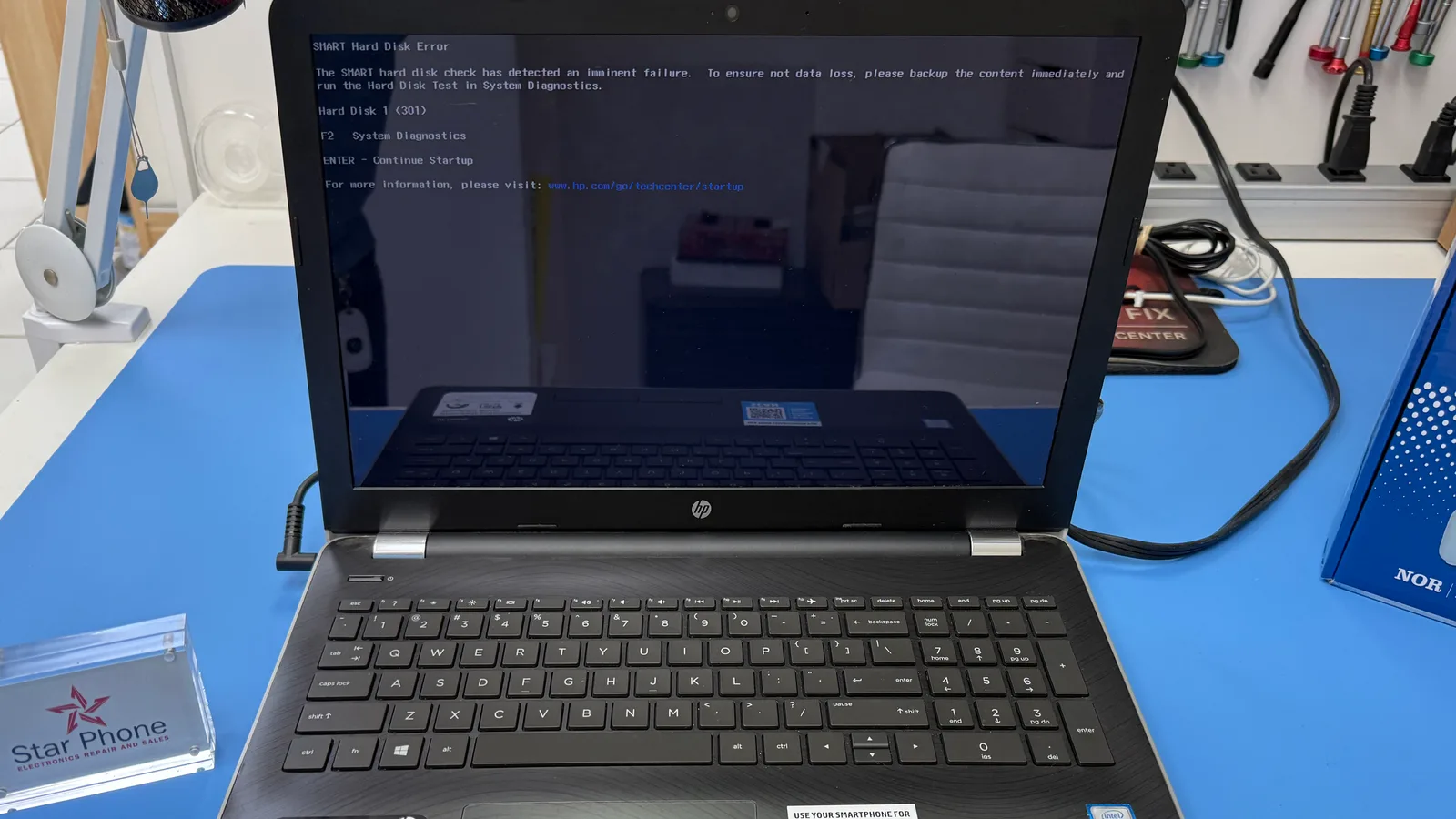
A Warning That Should Not Be Ignored
A computer that shows a SMART hard drive or SSD warning is reporting that its storage has detected abnormal health indicators. The computer may still start and your files may still open, but that does not mean the drive is healthy. Depending on its condition, access can become slower, unstable, or stop completely.
The exact message varies by manufacturer. An HP computer may display "Hard Disk 1 (301)," while another system may show "SMART Status Bad," "SMART Failure Predicted," "Backup and Replace," "Predicted Drive Failure," or a manufacturer-specific diagnostic code. The wording differs, but all of these messages point to a higher risk of storage failure and possible data loss.
What Is SMART?
SMART stands for Self-Monitoring, Analysis and Reporting Technology. It is built into most hard disk drives (HDDs) and solid-state drives (SSDs) to track reliability indicators, such as reallocated sectors, read errors, and wear, and to report conditions that may affect the health of the drive.
A SMART warning is a prediction, not a countdown. It cannot tell you the day or hour a drive will fail, and it should be confirmed with proper diagnostics. It is also not a message to keep bypassing with Enter or F1 before your important information is protected.
Is HP Hard Disk Error 301 Only an HP Problem?
The specific "Hard Disk 1 (301)" wording comes from HP diagnostics, but the warning behind it is not exclusive to HP. Dell, ASUS, Lenovo, custom-built desktops, and any computer with a BIOS or UEFI that reads SMART data can report the same kind of storage health problem with different messages and codes.
Common SMART Warning Messages by Brand
- HP: "SMART Hard Disk Error," "Hard Disk 1 (301)," and other HP storage diagnostic messages.
- Dell: PSA, ePSA, or SupportAssist pre-boot diagnostic codes, including drive self-test failures such as 2000-0142 on applicable models.
- ASUS and other BIOS/UEFI systems: "S.M.A.R.T. Status Bad, Backup and Replace."
- Lenovo or Windows: a failed SMART test or a message such as "Windows detected a hard disk problem."
- Other systems: "SMART Failure Predicted," "Predicted Drive Failure," "Drive Health Critical," or "Backup and Replace."
These codes are not interchangeable. The computer model, the type of drive, the complete message, and the test results all need to be considered before deciding what has actually failed.
SMART Warning vs "No Boot Device Found"
A SMART or failed self-test warning is not the same as a generic startup message such as "No Boot Device Found," "Operating System Not Found," or "Hard Drive Not Detected." Those messages can also come from BIOS settings, a loose or disconnected drive, corrupted boot files, or a controller problem. A proper diagnosis is needed before assuming that every startup problem is a physically failing drive.
Signs That May Appear Before a Drive Fails
- Slow startup or unusually long loading times
- Frequent freezing, crashes, or blue screen errors
- Files or folders that become inaccessible or corrupted
- Repeated disk check or repair messages at startup
- Applications that take much longer than usual to open
- Clicking, grinding, or repeated mechanical sounds from a traditional hard drive
- A drive that is detected only some of the time
- Windows failing to start
Some drives show few symptoms before they become inaccessible. In other cases, the SMART warning itself is the first clear sign that the drive needs attention.
Why Acting Quickly Matters
When the information on the drive matters, the first priority is preserving the data that is still accessible, not repeatedly testing, restarting, updating, or trying repairs on the original drive. Every extra read, restart, or intensive scan puts more demand on an unstable device. The right approach depends on whether the drive is still readable, whether it makes unusual sounds, whether encryption is enabled, and how valuable the information is.
Getting the drive evaluated early leaves more room to copy accessible files, save the encryption recovery key, or run a controlled clone before the condition gets worse. Recovery is never guaranteed, but waiting tends to reduce the options.
What About BitLocker Encryption?
Many Windows computers use BitLocker or Device Encryption, often turned on by default on newer Windows 11 laptops. When encryption is active, the BitLocker recovery key may be required after hardware changes, when the drive is read from another computer, or during certain recovery procedures.
Before replacing or migrating the drive, find out whether encryption is on and locate the recovery key: in your Microsoft account, with your work or school administrator, on a printout, or in a saved file. BitLocker is designed to block unauthorized access, so a missing recovery key cannot simply be pulled from a damaged or locked drive.
What to Do When You See a SMART Drive Warning
- Avoid unnecessary use of the computer.
- Do not keep restarting it just to see whether the warning goes away.
- If the files open and the drive is stable, copy your most important information first.
- Do not install new software, run a factory reset, reinstall Windows, or format the drive before saving the data you need.
- Do not run repeated or intensive scans on a drive that is clicking, disconnecting, or getting slower.
- Write down or photograph the complete error message and diagnostic code.
- Have the drive evaluated as soon as possible if the information matters.
Can a Failing Hard Drive or SSD Be Repaired?
A drive that is genuinely deteriorating is generally not restored to reliable long-term service by repairing Windows or clearing the warning. The usual goal is to protect the information, confirm the diagnosis, replace the unreliable drive, and restore or migrate the data when possible. Depending on the condition of the computer and the drive, a proper fix usually involves:
- Testing the HDD or SSD and reviewing its diagnostic results
- Checking whether BitLocker or Device Encryption is active
- Copying accessible files or running a controlled clone or migration
- Replacing the failing drive, often with a compatible SSD
- Reinstalling or restoring Windows when necessary
- Moving the recovered or migrated information onto the new drive
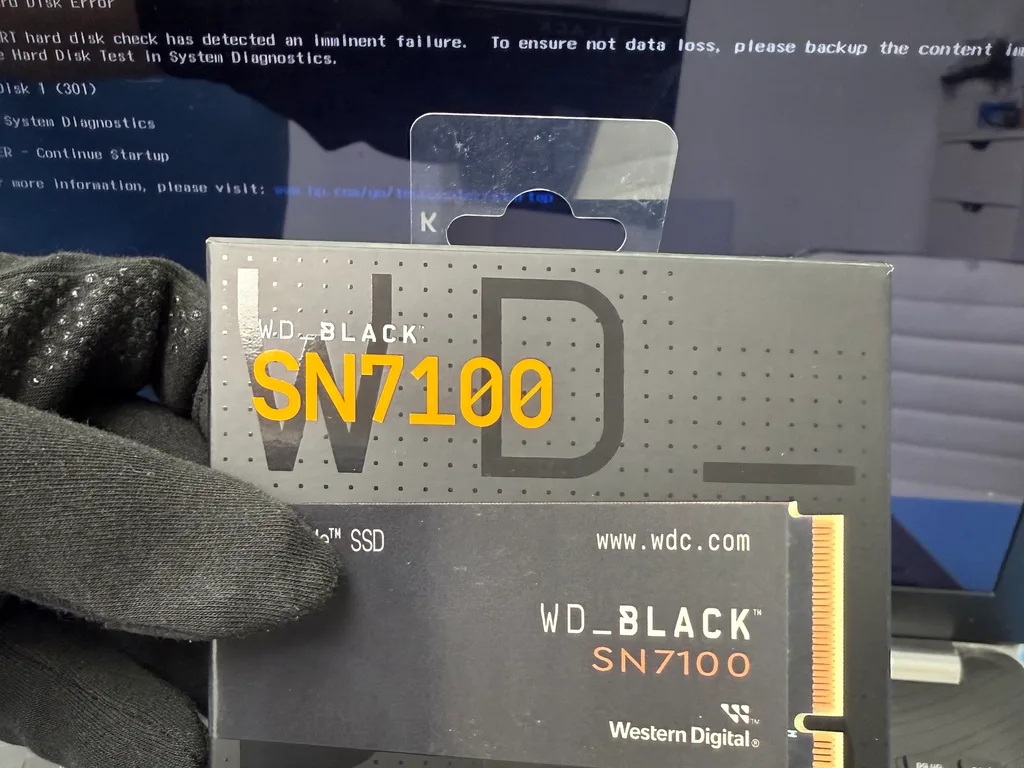
If the drive is mechanically damaged, is not detected at all, or holds irreplaceable information, specialized data recovery may be required. A standard migration and advanced data recovery are not the same job.
Need Help With a SMART Drive Warning in Hialeah?
Star Phone Fix evaluates laptops and desktops showing SMART warnings, HP Error 301, failed drive self-tests, and other storage diagnostic errors at our Hialeah shop. When the drive is still readable, we check whether BitLocker is active, protect the files that matter, replace the failing drive, usually with an SSD, and migrate your data when the drive's condition allows it. Our Hard Drive Replacement page explains how we handle failing drives and SSD upgrades.
If your computer is warning you about a possible hard drive or SSD failure, the sooner it is checked, the more options there are to save what is still accessible.
Frequently Asked Questions
What does SMART Hard Disk Error 301 mean on an HP computer?
It means the HP startup diagnostics read the drive's SMART data and found values that point to a likely failure. The computer may still start if you press Enter, but the drive is no longer considered reliable. Back up your important files as soon as possible and have the drive tested before relying on it again.
Can I keep using my computer after a SMART warning?
You may be able to for a while, but it is a gamble. A SMART warning cannot say when the drive will fail, and every restart or heavy scan adds stress to an unstable drive. Use the computer only to copy your most important files, then have the drive evaluated and replaced.
Does replacing the drive make the SMART warning go away?
Usually, yes, when the failing drive was the cause. The warning comes from the drive itself, so a new HDD or SSD starts with clean health data. Reinstalling Windows or resetting the BIOS on the old drive does not fix it. Before the swap, check whether BitLocker is on and find the recovery key.