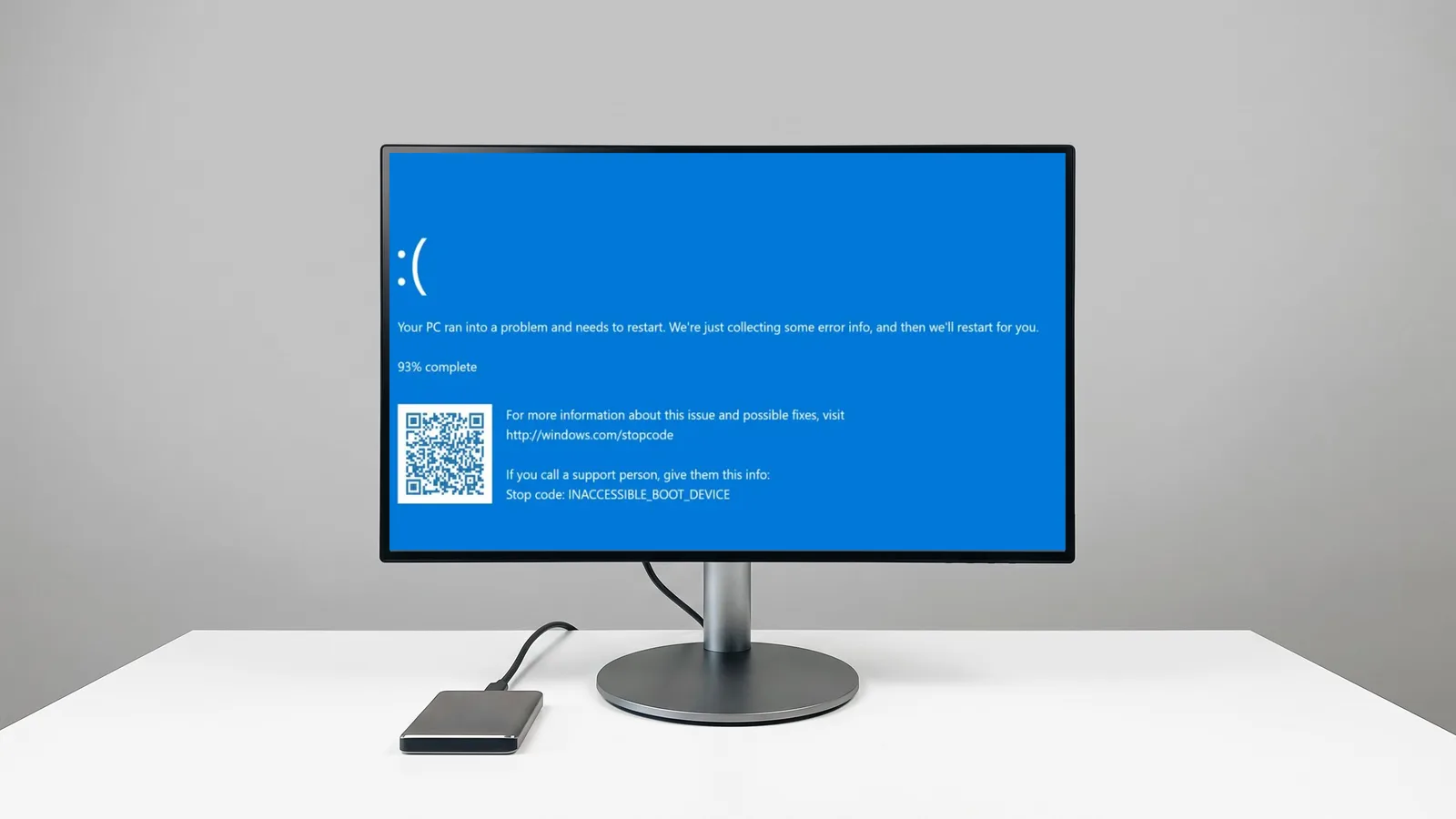
Cloning a Drive for the Same PC
When the cloned drive goes back into the same computer, Windows finds the exact motherboard, chipset, storage controller, and graphics card it was installed on. Every driver it loaded yesterday is still correct today, so nothing inside Windows needs to change. This is the classic SSD upgrade, covered in more detail in our guide to hard drive cloning vs a Windows reinstall.
The checks that matter here are about the drive, not the drivers:
- Drive health: bad sectors on the source drive can break the clone or copy damaged files.
- Space used: the data has to fit the new drive. A 1TB drive with 300GB in use fits on a 500GB SSD.
- Boot mode: a UEFI/GPT system must stay UEFI/GPT on the new drive.
- Encryption: have the BitLocker or device encryption recovery key on hand before the swap.
Moving a Cloned Drive to Different Hardware
Migration is when the cloned Windows installation goes into a different computer: a new desktop, a laptop of another model, or the same PC after a motherboard replacement. Windows still has the old machine's drivers loaded and set to start at boot. Some of them, especially chipset and storage drivers, do not fit the new hardware.
What usually goes wrong:
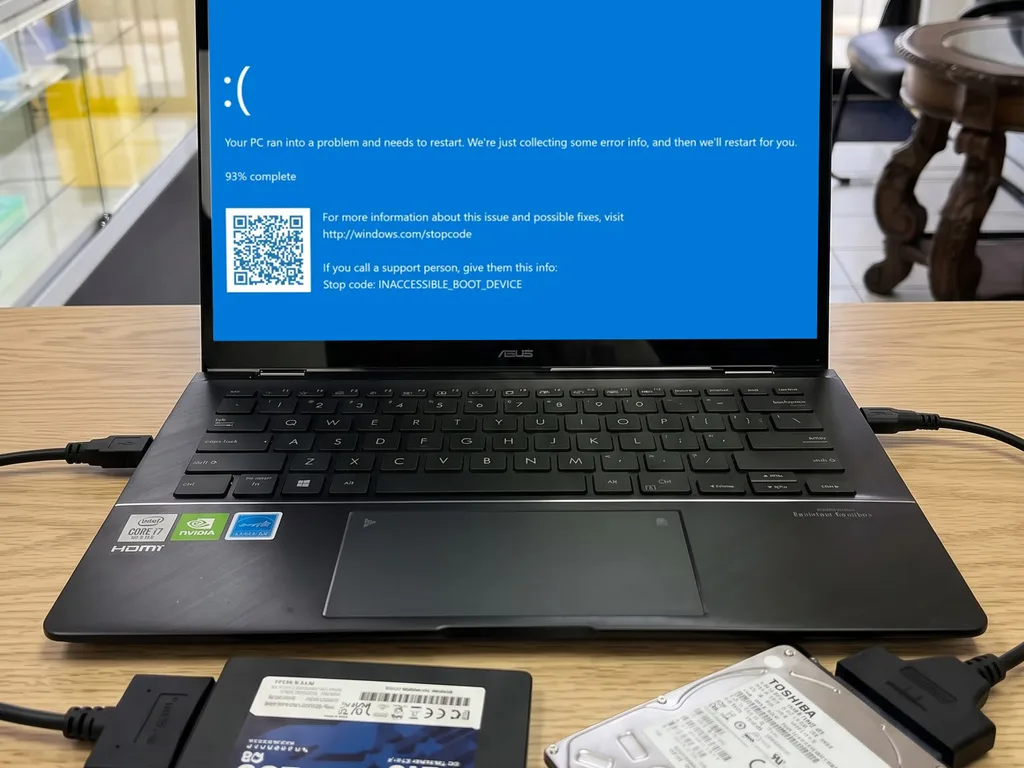
- INACCESSIBLE_BOOT_DEVICE blue screen: Windows cannot load the driver for the new storage controller (for example moving from an AMD board to an Intel board with VMD / Intel RST enabled, or between NVMe and SATA controllers), so it loses access to its own system drive during boot.
- Boot loops or random blue screens from chipset, power management, or Intel/AMD platform drivers that belong to the old CPU platform.
- Graphics driver conflicts when moving between NVIDIA, AMD, and Intel graphics.
- Manufacturer utilities (Dell, HP, Lenovo, ASUS) that expect their own hardware and throw errors or slow down startup.
- Windows activation: an OEM license that came with the old computer is tied to that machine's motherboard, so Windows may ask to be activated again on the new one.
What a Proper Migration Involves
The goal is for Windows to boot on the new hardware with generic drivers first, and then receive the correct drivers for the new machine. A typical migration follows these steps:
- Back up the user's files before touching any drivers, in case the migration has to be abandoned.
- Uninstall the old platform's chipset drivers and manufacturer utilities.
- Remove the old graphics drivers completely, not just from Apps and Features.
- Make sure Windows can start with its standard storage drivers, or add the Intel RST / VMD driver when the new PC needs it.
- Clone the prepared drive, install it in the new computer, and confirm it boots in the right UEFI and Secure Boot mode.
- Install the new PC's chipset, storage, graphics, and network drivers, check Device Manager for unknown devices, and confirm Windows activation.
Sysprep: Microsoft's Official Method
Microsoft's own tool for moving a Windows installation to different hardware is Sysprep. It generalizes Windows, resetting the hardware configuration so the system detects the new machine from scratch on the next boot. Sysprep has limits, though: it removes some user-specific settings, it can fail on installations that were upgraded from older Windows versions, and it has to run from inside a working Windows on the original PC. That is why Sysprep and a manual driver cleanup are chosen case by case.
When the Old PC Will Not Turn On
A common situation: the old computer died (bad motherboard, power failure, liquid damage), but the drive is fine and the owner wants their Windows, programs, and files running on a new PC. Sysprep cannot help here, because it needs the old Windows to boot on its original hardware, and that hardware no longer works.
In this case the Windows installation is prepared offline, without booting it:
- Remove the drive from the dead computer and clone or image it first, so the original stays untouched.
- Connect the copy to another computer and use Windows recovery tools to service the installation offline.
- Add the storage driver the new PC needs (NVMe, Intel RST / VMD, or AMD storage) directly into the offline Windows image.
- Remove the old platform's chipset, storage, and manufacturer drivers, and disable startup services that belong to the old hardware.
- Install the drive in the new computer, let Windows boot with generic drivers, then install the new PC's own drivers and confirm activation.
If the installation cannot be made stable on the new hardware, the files are still safe on the cloned copy, so a clean Windows install with the files moved over remains a fallback.
How to Know a Migration Really Worked
A migration is not finished when Windows reaches the desktop. These are the signs that the system is truly working on the new hardware:
- Windows starts normally several times in a row, with no blue screens.
- Device Manager shows no unknown devices or driver errors.
- Wi-Fi, Ethernet, audio, USB ports, and graphics work with the new PC's drivers.
- Windows shows as activated.
- Your main programs open and your files are in place.
Some programs, like accounting, design, or tax software, tie their license to the hardware and ask to be activated again on a new computer. Have those license keys or account sign-ins ready before the move.
Cloning vs Migration: Side by Side
| Aspect | Clone for the same PC | Migration to a new PC |
|---|---|---|
| Hardware Windows sees | Same as before | Different motherboard, chipset, storage |
| Driver cleanup needed | No | Yes, before and after the move |
| Blue screen risk | Low | High if drivers are not cleaned |
| Windows activation | Stays active | May need reactivation (OEM licenses) |
| Typical reason | HDD to SSD upgrade | New computer, replaced motherboard |
When a Fresh Install Is the Better Option
If the old installation already had errors, years of clutter, or the jump in hardware is very large (for example a ten year old Intel desktop to a new AMD laptop), migrating it can bring the problems along. In those cases a clean Windows install on the new PC, then moving files and reinstalling programs, gives a more stable result.
Need Your Drive Cloned or Your PC Migrated in Hialeah?
At Star Phone Fix we do both jobs at our Hialeah shop: cloning to a new SSD in the same computer, and migrating Windows, programs, and files to a new computer with different hardware, including when the old computer no longer turns on. We check the drive first, explain whether a clone, a migration, or a fresh install fits your case, and confirm the system works on the new hardware before you pick it up. Our Hard Drive Replacement page covers SSD upgrades, cloning, and migration for laptops and desktops.
Frequently Asked Questions
Can I put my old hard drive in a new computer and keep everything?
Sometimes, but not reliably. Windows has the old computer's chipset and storage drivers loaded, so on new hardware it often fails with an INACCESSIBLE_BOOT_DEVICE blue screen. Cleaning those drivers before the move, or generalizing Windows with Sysprep, is what makes the migration work.
Why does my cloned drive give a blue screen?
If it is in the same PC, check that the boot mode (UEFI or Legacy) and the SATA/RAID setting in the BIOS did not change. If it is in a different PC, the storage controller driver for the new hardware is usually missing, and the old platform drivers need to be removed.
Will Windows stay activated after moving my drive to a new PC?
It depends on the license. A retail license can be transferred, and a digital license linked to a Microsoft account can often be reactivated with the Activation troubleshooter. An OEM license that came preinstalled is tied to the original computer.
My old computer will not turn on. Can I still move its Windows and programs to a new PC?
Often, yes, as long as the drive itself is healthy. Sysprep cannot be used because the old Windows cannot boot on its original hardware, so the installation has to be prepared offline: clone the drive, add the storage driver the new PC needs, and remove the old chipset and platform drivers before the first boot.
Is cloning to the same PC safer than migrating to a new one?
Yes. In the same PC, Windows finds the exact hardware it was installed on, so the only real risk is the drive itself. Migration adds driver and activation work on top of the clone.